Screen Text Clicker - Automated Screen OCR & Text-Triggered Mouse Clicker for Windows
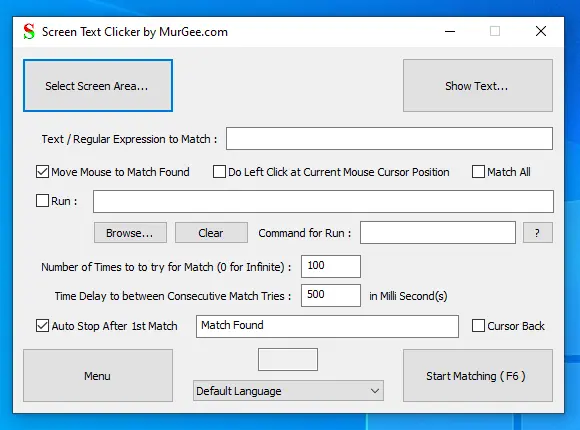
Do Automated Fast OCR on Screen Contents and simulate Mouse Click on a Windows 10 or Windows 11 Computer. The Screen Text Clicker performs Fast OCR onto Selected Rectangular Screen Area and can be used to continuously Monitor Screen Area for Appearance of specified Text. Various other features of Screen Text Clicker allows you to save Screenshot of Screen Rectangular Area, Save OCRed Text as Text File, Copy Screen Text OCRed to Clipboard and much more. The Language of Optical Character Recognition (OCR) can be selected from the main screen of Screen Text Clicker. Usage of this Software as Text-Triggered Clicker is really handy and easy.
Download Screen Text Clicker for Windows 10 or Windows 11
Screen Text Clicker is available for multiple platforms and given below download links are available. This OCR Clicker Software works on Windows 10 and runs with minimal computer resources. You can verify CPU and Memory usage of this OCR Software from Task Manager and yes it performs Fast OCR without connecting to Online OCR services and is a Offline & Private OCR and Clicker Software.
You can Download and try this Screen Text Clicker for Free on your Windows 10 or Windows 11 Device running on 32-bit or 64-bit Architecture. Once your Free Trial Expires, you can Pay USD 8.76 and use this Software on 1 Computer for at Maximum 3 Months from the Date of Payment.
Features of Screen Text Clicker
This Optical Character Recognition Software with Automated Mouse Clicking feature can be a handy software to Monitor Screen Changes. Given below features of Screen Text Clicker gives you an easy overview of what all useful OCR features are offered by this software. Yes, you can even contact customer support to get relative software feature added to the software.
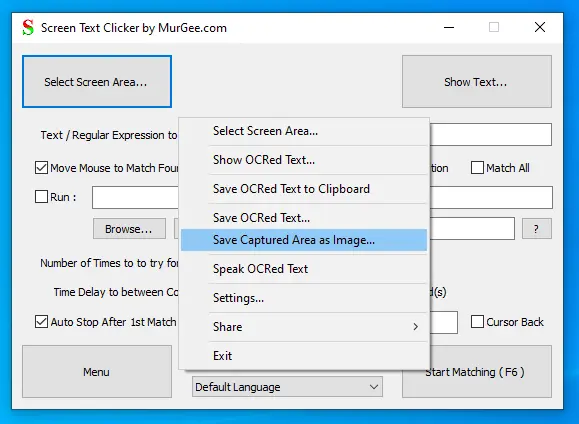
- Recognize Text in a Rectangular Screen Area irrespective of the Software Application displaying the text. The Text is recognized by Screen Text Clicker by doing Optical Character Recognition in selected language.
- There are various Optical Character Recognition Languages supported by Microsoft. You can add more Optical Character Recognition Languages to your device from Windows 10 Language Settings.
- You can Match specified Text from the Text Recognized by Optical Character Recognition and take appropriate Action like simulating a Mouse Click, executing a Macro Script with Auto Mouse Click, run a Command line Application and much more.
- You can Capture Screenshot of Rectangular Area to a .png File at your selected Folder Location.
- Save Text Recognized with Optical Character Recognition in a Text File at your selected Folder Location or Copy the Text to Clipboard.
- You can ask the Screen Text Clicker to Speak OCR Recognized Text using Text to Voice Conversion.
- Enable to Disable Beep Sound of Screen Text Clicker to indicate OCR being performed for the specified Screen Rectangular Area.
- The Screen Text Clicker is Multiple Monitor Compatible and has been tested to simulate Mouse Click on Dual and Multiple Monitor Windows 10 Computer.
You can Contact us to share your Feedback, Suggestions or Bug Reports and we will try our best to respond in timely manner. The Screen Text Clicker Software has been built with Automation in mind so that you do not need to wait for something to happen on screen and instead use your time in a better way. The Optical Character Recognition Engine of Windows 10 is fast and works well with lots of OCR languages supported by Microsoft. Arabic, Chinese, Japanese, Dutch, English, French, German and lots of other OCR Languages are already supported by the Optical Character Recognition Engine of Windows 10.